
Browse our animals, review their information, and request a reservation. Adding an animal to your list or submitting a request does not reserve it. Our approval is required.
The numbers on each screenshot match the steps below it. Tap or click a screenshot to enlarge it. On a phone, the same controls may stack vertically.
In this guide
Find animals · Review a listing · Reservation List · Send a request · Need help?
Find animals that fit your plans
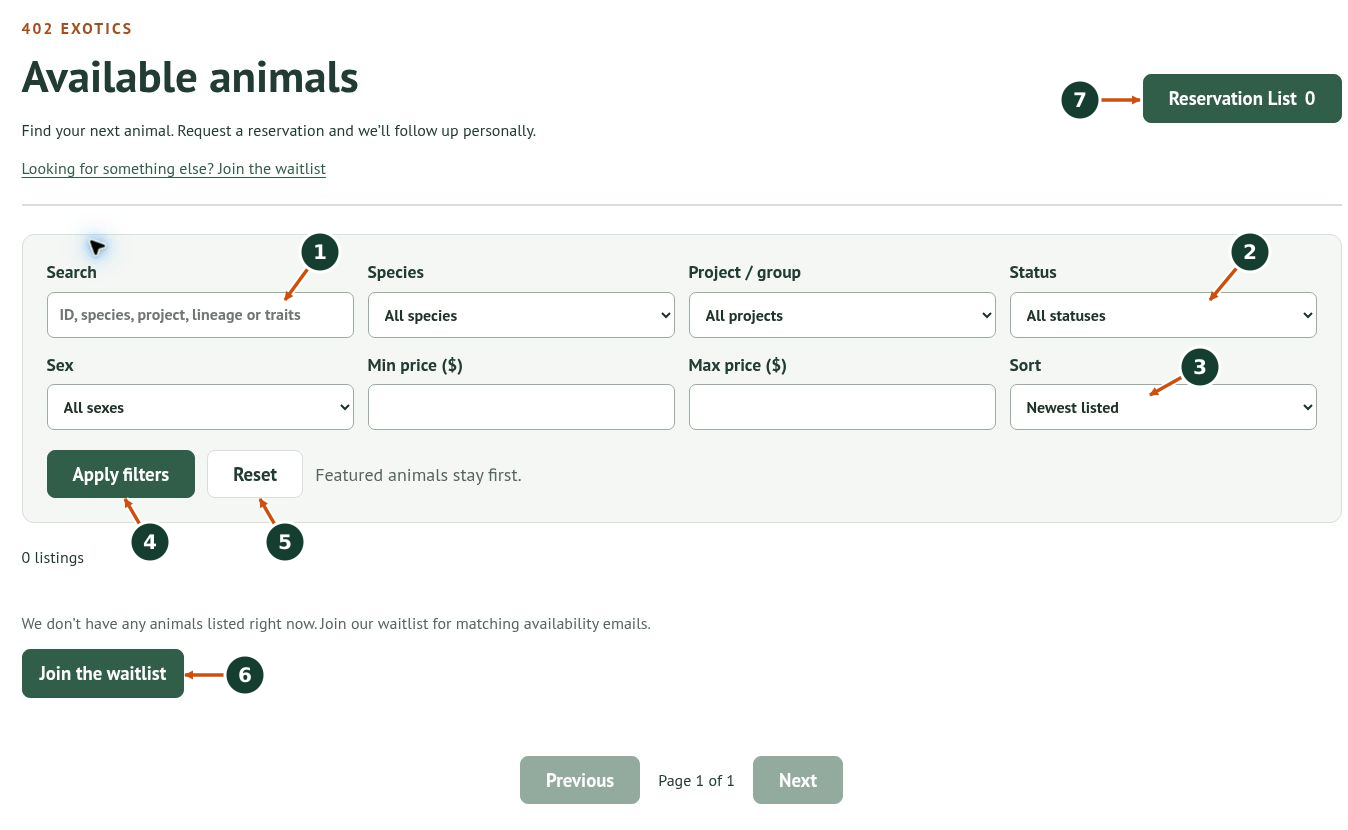
This screenshot was captured when no animals were listed. Listings and species/project choices change with availability.
1. Use Search for an animal ID, species, project, lineage, or traits. Narrow the results with Species and Project / group when choices are available.
2. Choose Available under Status when looking for animals you can request. Add a Sex preference and price range if useful.
3. Choose a Sort order. Newest listed means most recently listed—not youngest. Youngest → Oldest and Oldest → Youngest use hatch/birth dates; unknown dates appear last. Price filters are cleared and disabled while sorting by hatch date. Featured animals stay first in Newest listed mode.
4. Click Apply filters to update the results.
5. Use Reset if the filters are too restrictive. Use Previous and Next when more than one results page is available.
6. If nothing suitable is listed, use Join the waitlist for matching availability emails. An empty catalogue is different from a search with no matches.
Review the actual animal before requesting it
When listings are available, select View animal or the linked species name. Check the animal ID, status, price, sex description, hatch/birth date, photos, and notes. Review care and pedigree links when provided. Ask us about any essential detail that is not established by the listing.
For a batch, expand Choose individual animals, review each ID and its status, select the individuals you want, and click Add selected animals. A representative batch photograph may not show the exact animal you choose. Ask for clarification when individual appearance matters.
On an individual available animal, use Add to Reservation List. A probable sex is not a confirmed sex; a dated weight reflects the measurement on that date.
Check your Reservation List
7. Open Reservation List at the top of Availability (arrow 7 in the first screenshot). Check every animal ID, current status, price, and subtotal. Use Remove for an unwanted or unavailable animal.
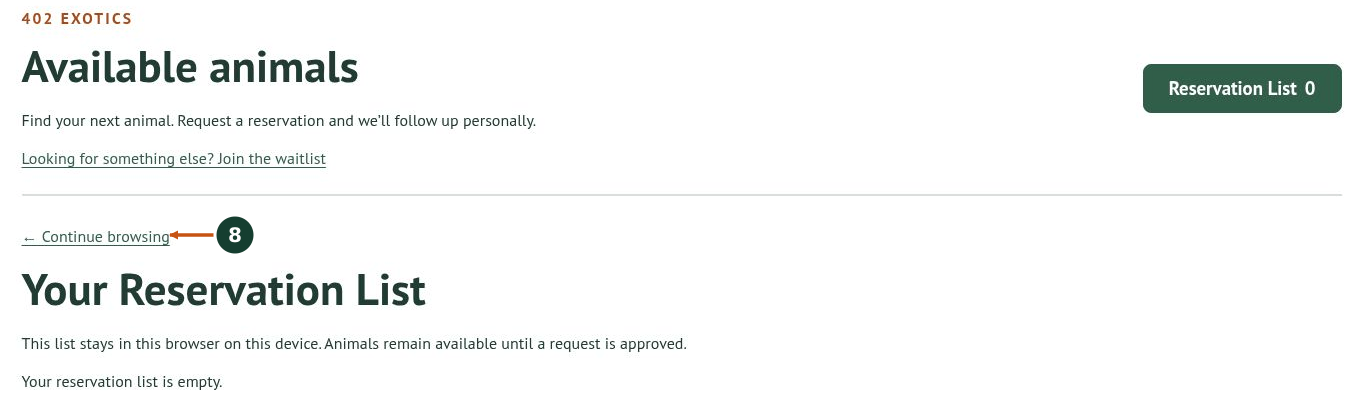
8. Use Continue browsing to return to the catalogue. Your list stays in this browser on this device; it does not automatically follow you to another phone or browser.
The screenshot shows an empty list. The request form appears after animals have been added. Saving a selection does not hold animals or lock their prices.
Send your reservation request
Delivery: Choose Shipping or Individually arranged pickup. Review the estimate and select Continue. Final charges and arrangements require approval.
Contact details: Enter Full name, Email, City, and State. Phone and Message / comments are optional. Include important requirements or questions and check your email address before continuing.
Review request: Check the selected IDs, delivery method, contact details, and estimated total. Use Back to correct anything. Read the linked terms, check the agreement box if you agree, then choose Submit reservation request. No payment is taken at this step.
Wait for Request received and save the reference. Check your email. If Follow your purchase progress is offered, save that private link; do not post it publicly. We review the request and follow up. Payment, shipping, tax, and agreed adjustments are confirmed during approval.
Need help?
An animal became unavailable: remove it, or use Review updated list if offered. No clear confirmation: check your email and contact us before submitting repeatedly. Stuck on Loading: reload, make sure JavaScript is enabled, and check whether a content blocker is interfering.
Use our Contact Hub and include the animal ID or request reference when available.