
Our electrical planner estimates equipment load, energy use, operating cost, and equipment heat output. Keeper mode handles a single enclosure. Breeder mode organizes reusable loads, enclosure profiles, racks, and circuit assignments. Use actual equipment ratings and your electricity rate; the examples below demonstrate the calculation, not a heating schedule.
Open our Electrical Load Calculator
Follow the numbered steps in each section. Numbers on screenshots match the steps directly below them. Example values are for learning; replace them with your own information.
In this guide
Plan one enclosure in Keeper mode · Move into Breeder mode · Build a reusable equipment load · Build an enclosure profile · Build a rack configuration · Place equipment and assign every circuit · Read the electrical and heat summary · Back up, import, and print
1. Plan one enclosure in Keeper mode
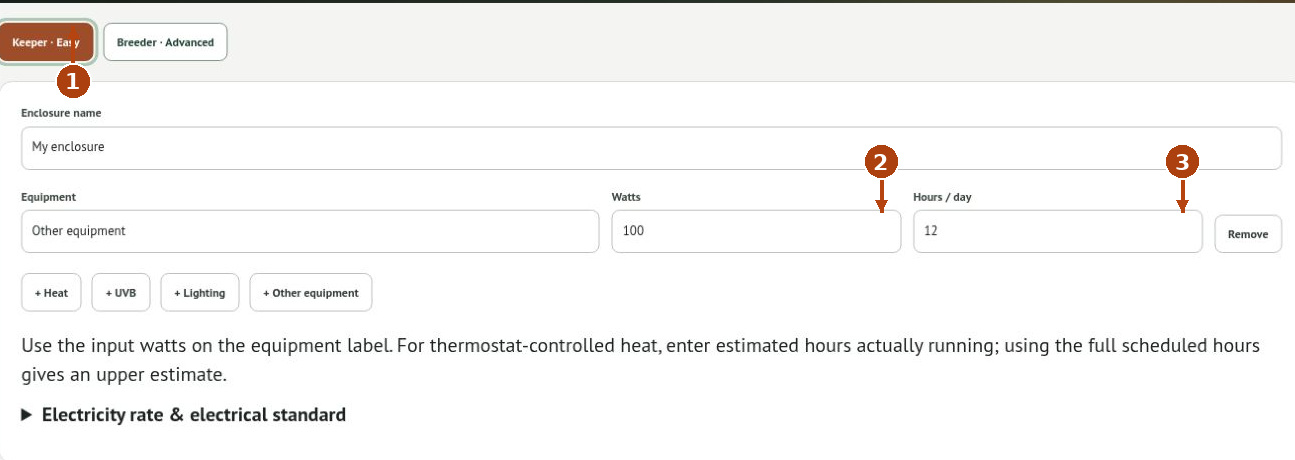
1. Choose Keeper · Easy and give the enclosure a useful name. Add rows with + Heat, + UVB, + Lighting, or + Other equipment. Rename each equipment row so you can recognize it.
2. Enter the equipment’s actual input Watts. Use the product label or a measured input value appropriate to the estimate.
3. Enter Hours / day actually running. For thermostat-controlled equipment, this is the estimated equivalent full-power running time. Use Remove to remove an unwanted row.
Open Electricity rate & electrical standard to enter your rate per kWh and country. A 100 W load operating 12 hours/day uses 1.2 kWh/day. At $0.15/kWh, that is about 36.5 kWh and $5.48 per average month. The connected load remains 100 W even when running time is reduced.
2. Move into Breeder mode

1. Choose Breeder · Advanced, or Add more enclosures → Breeder mode. The Keeper enclosure carries into the facility plan.
2. Choose the correct Electrical standard and name the project. Check that circuit voltages match the installation you are evaluating.
3. Enter your Electricity rate and the Default breaker planning limit. The planning percentage is a chosen margin, not an electrical-code approval.
The top section remains available while you use Facility plan, Load library, Enclosures, Racks, and Save / export. Changing operating percentages affects energy estimates; it does not reduce the connected load used for breaker comparisons.
3. Build a reusable equipment load
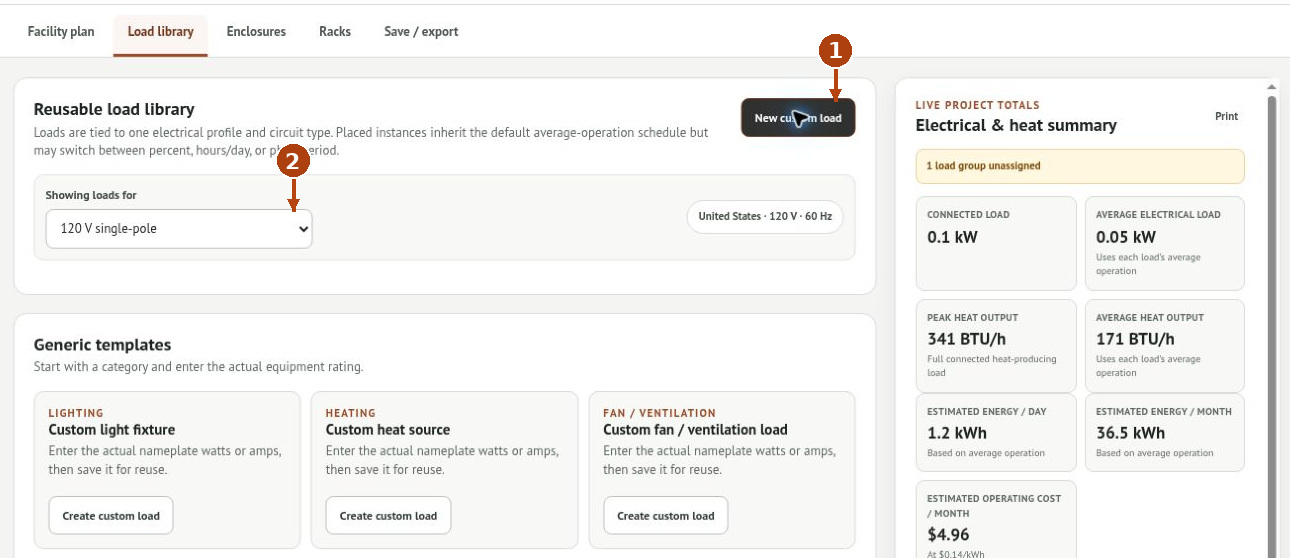
1. Open Load library. Choose New custom load to enter your own equipment, or use a template/preset as a starting point.
2. Check Showing loads for before choosing equipment. The library is filtered by circuit type.
In Create custom load, enter Display name, Category, Circuit type, Electrical entry (Watts or Amps), and Rating. Manufacturer, model, and notes are optional. Choose Average operation mode—Percent, Hours per day, or Photoperiod—and enter its default. Click Save load preset. Presets also offer Add to plan and Customize. Saving a reusable load alone does not place it in the facility totals.
4. Build an enclosure profile
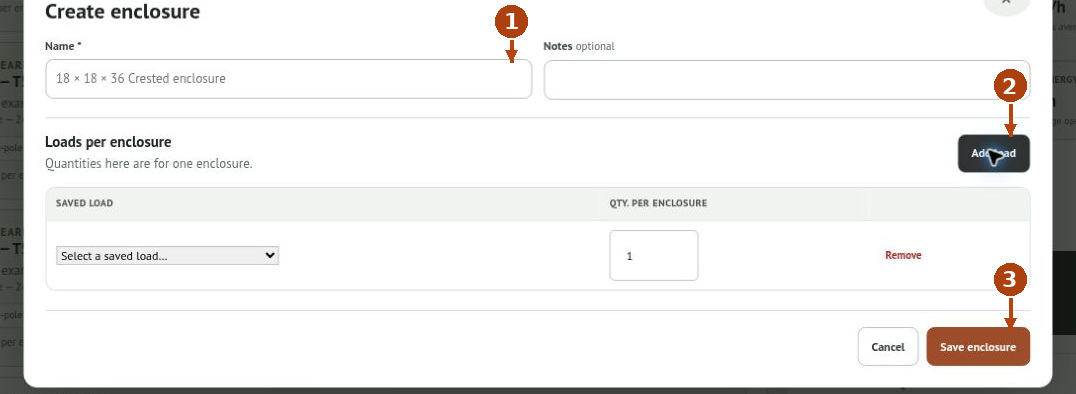
1. Open Enclosures → New enclosure profile, or use Customize & save on a suitable example. Give the profile a clear name.
2. Click Add load. Select a saved load and enter Qty. per enclosure. Repeat for every load belonging to one enclosure.
3. Click Save enclosure. This saves the reusable configuration.
An enclosure profile describes one enclosure. It does not specify the number of racks or assign a facility circuit. For example, one 24 W T5 fixture plus one 12 W LED fixture totals 36 W per enclosure before any rack-level equipment.
5. Build a rack configuration
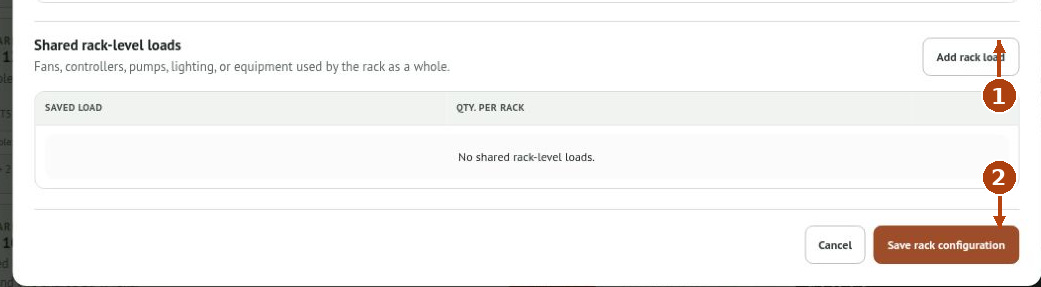
1. Open Racks → New rack configuration. Name the rack, then use Add enclosure type to select profiles and enter their Qty. per rack. Under Shared rack-level loads, Add rack load adds equipment used by the rack as a whole.
2. Click Save rack configuration. You can also start from a rack example with Customize & save.
Do not count a shared fan once per enclosure and again at rack level. The built-in 12-Position LED Rack example contains twelve 12 W LED loads and two shared 10 W fans: 164 W per rack. This illustrates the structure, not a recommended enclosure setup.
6. Place equipment and assign every circuit
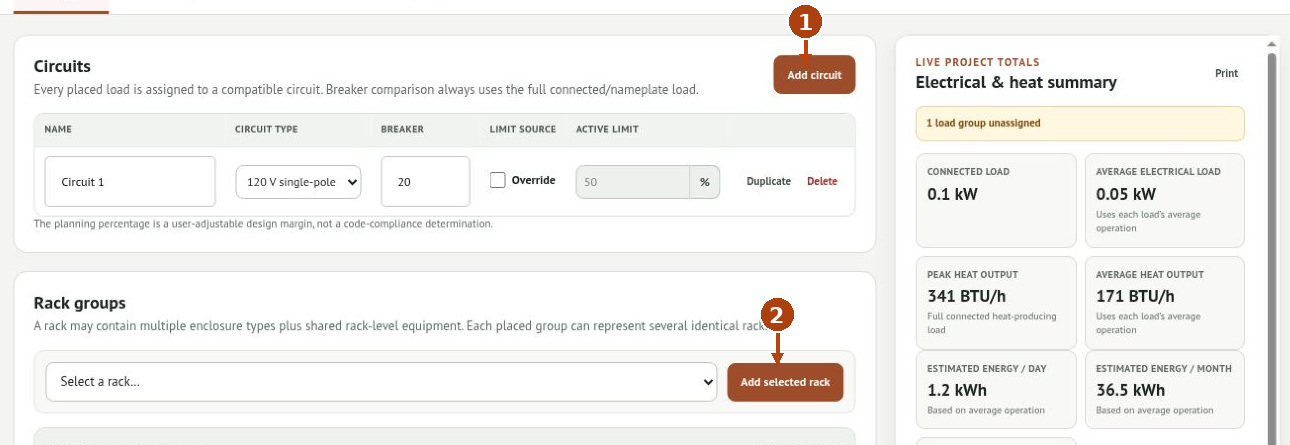
1. Open Facility plan. Use Add circuit as needed, then enter each circuit’s name, circuit type, and breaker rating. Use Override only when that circuit needs a different planning percentage.
2. Under Rack groups, select a saved rack and click Add selected rack. Set the placement name and Number of identical racks. Expand the group to review its load rows.
3. Assign each row to a compatible Circuit. Add equipment outside racks through Standalone loads → Add selected load, then set quantity, operation, and circuit.
Check for Unassigned warnings before relying on the breaker summary. Equipment can contribute to project energy totals while still being absent from an individual circuit comparison. Duplicate copies a placement or circuit; Remove/Delete removes the selected item. Check quantities after duplicating.
7. Read the electrical and heat summary
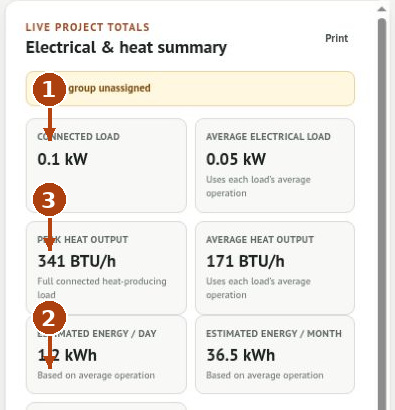
1. Review Connected load and Breaker comparison first. These use full connected/nameplate load, not thermostat duty cycle.
2. Compare Estimated energy / day, monthly energy, and operating cost with the chosen running schedules and rate. Monthly estimates use 365.25 ÷ 12 days.
3. Read peak and average heat output separately. Peak uses full connected heat-producing load; average uses the chosen operation settings.
The 100 W, 12-hour/day example has about 0.83 A connected current at 120 V, 341 BTU/h at full power, and 171 BTU/h averaged over the day. Air-conditioner electrical demand remains in energy and circuit totals, but the tool excludes air conditioners from the equipment heat-output total. This is not a prediction of enclosure temperature or cooling-system size.
8. Back up, import, and print
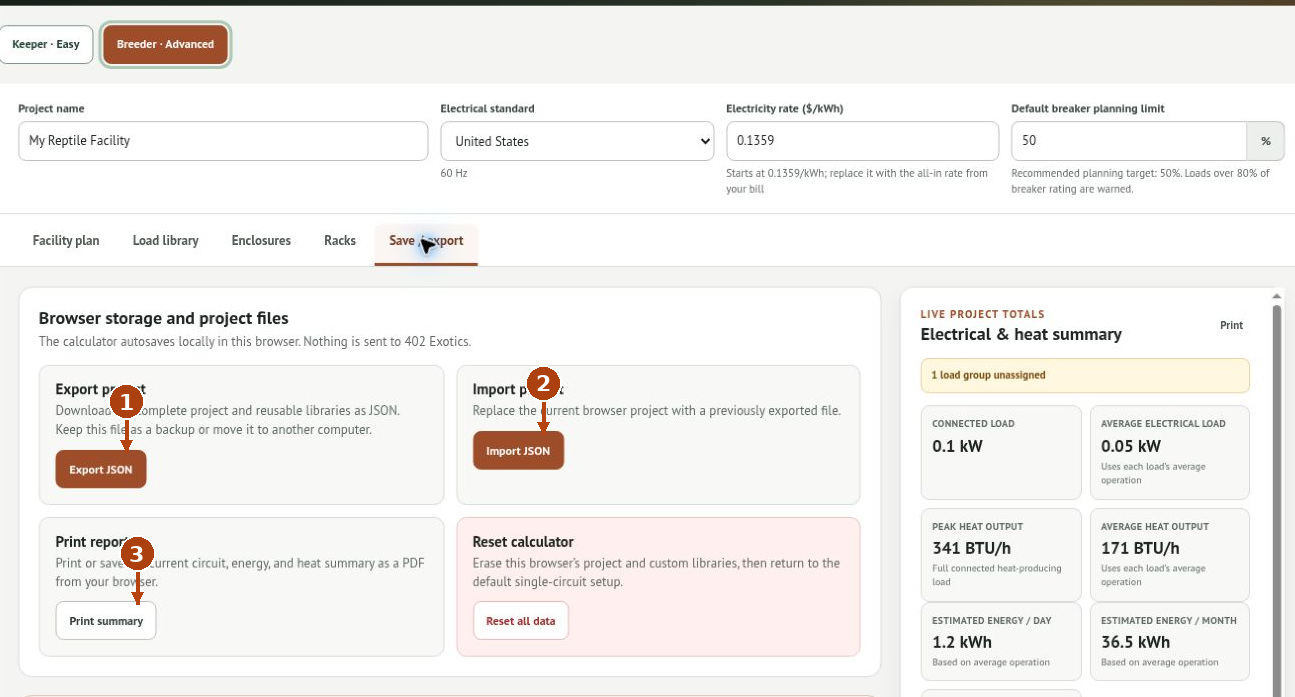
1. Open Save / export → Export JSON to download the project and reusable libraries. Keep the file outside this browser.
2. Import JSON replaces the current browser project with the selected exported file. Export your current work first if you need to retain it.
3. Use Print summary to print the report or choose the browser’s Save as PDF option. Inspect the preview before saving.
Reset all data erases the current browser project and custom libraries. Autosave is local to this browser, not cloud storage. The planner does not inspect wiring, conductor sizes, startup current, or installation conditions.
Troubleshooting
The circuit reads zero although energy totals are nonzero
Look for Unassigned loads and assign every placed row to its compatible circuit.
A saved load does not appear in totals
Place it in Facility plan, or include it in an enclosure/rack and place that rack.
The cost changed but breaker load did not
Running time changes energy use. Breaker comparison still uses the connected load.
The plan is larger than expected
Check quantities at all three levels: per enclosure, per rack, and number of identical racks. Check for duplicated placements.